How to Add a Logo to a Product Photo With AI
Add a logo to a product photo with two references and a focused AI prompt. Check lettering, surface perspective and placement before sharing the mockup.
A clear packaging photo and your logo can become a branded mockup for a design discussion or shop listing preview. Upload them as separate references, then compare the result with both originals: AI may redraw lettering or alter product details.
1. Prepare your product photo and logo
Choose a product photo with a flat, visible sleeve or label. Keep hands and other objects away from the intended logo area. Use a clean copy of your own logo as the second image.
A transparent PNG may help avoid a white rectangle around the logo, though output transparency is not guaranteed. Supported reference files are JPG, PNG, and WebP, up to 10 MB each.
Avoid confidential or unapproved client files: Image26 says anyone with an image URL may view it.
2. Add both references and describe the placement
Open Image26 Image to Image. Use Add a reference image to upload the product photo first and the logo second. Check that your selected model supports both references; limits vary by model.
Paste this proposed, untested prompt into Prompt:
Use the first reference as the product photo and the second reference as the logo artwork. Place the logo on the flat front of the white packaging sleeve, centered and modest in size, following the surface perspective. Keep the product shape, camera angle, background and lighting unchanged. Do not add slogans or extra symbols.
Adapt only the packaging, color, and location descriptions to match your photo. Keep the instructions identifying each reference’s role.
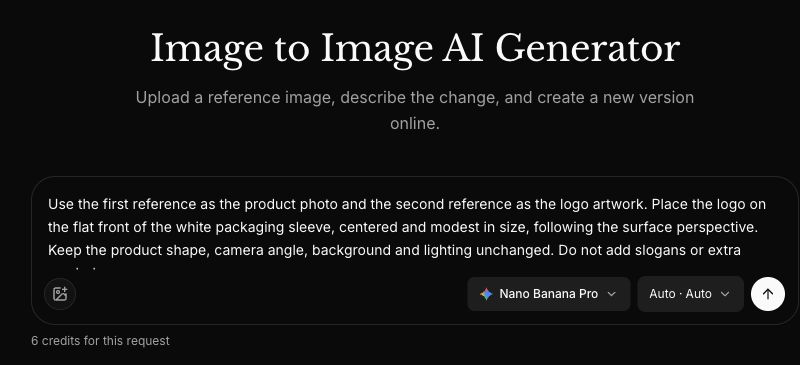
Screenshot of the input interface with the proposed prompt and empty references. No product photo or generated result is shown.
3. Review your quote and generate
Once both references are attached, review the selected model, output settings, and displayed credit quote. The amount can vary with your model, references, and output choices; the screenshot’s quote reflects zero uploaded references.
Choose Generate when you are ready to make the mockup.
4. Check the artwork and save your mockup
Compare spelling, letter shapes, spacing, and color with the original logo. Check its size and perspective on the surface, then compare the product shape, camera angle, background, and lighting with your photo.
Small logos can lose fine detail. For another attempt, simplify the placement or address one issue per new request, then compare again. A new result may still need correction. For exact brand lettering and artwork, composite the original logo in a design app.
Save a selected result through the result view or My Creations when available. Keep your original assets. If sharing could imply a real branded product, label the image as a mockup or AI-generated illustration.
Disclosure: Drafted, edited, and reviewed with AI in association with the Image26 product team. The proposed prompt is untested; no product photo or logo was uploaded and no new image was generated for this article.