How to Change Shirt Color in a Photo With AI
Change shirt color in a photo with a focused AI edit. Prepare the source, protect fabric details and skin tones, then compare before sharing.
Pick one new color for the shirt and keep the original photo open for comparison. In Image26, you’ll use the photo as a reference and write a prompt that identifies the shirt, names the new color, and describes the details you want to preserve. Start with the Image26 image-to-image editor.
Choose a photo that shows the shirt clearly
Look for a sharp frame where you can see the collar, sleeve edges, and some folds. A shirt half-hidden by a jacket or photographed in deep shadow gives the model less information about where the fabric ends. If you have several shots from the same session, choose the one where the shirt separates most clearly from skin, hair, and other clothing.
Use a photo you own or have permission to upload. If anyone is identifiable, obtain their consent to submit their image and personal data to Image26 and its processing providers. The editor accepts JPG, PNG, and WebP references. Keep the file below the displayed 10 MB limit. If you need to convert your original, export a copy and check that the fabric and face still look clear. Keep the original file for your comparison. Image26 says uploads and results appear in your account library and that anyone with an image link may be able to view it.
Add the reference and write a color-only prompt
Select Add a reference image and choose your photo. In Prompt, name the garment and one color. If the portrait shows an open jacket over a T-shirt, call out the T-shirt under the jacket so the request points to a specific piece of clothing. If several people are in the photo, identify the wearer by position and an existing detail, such as “the person on the left in the striped shirt.” Ask to retain the stripes if they matter to the edit.
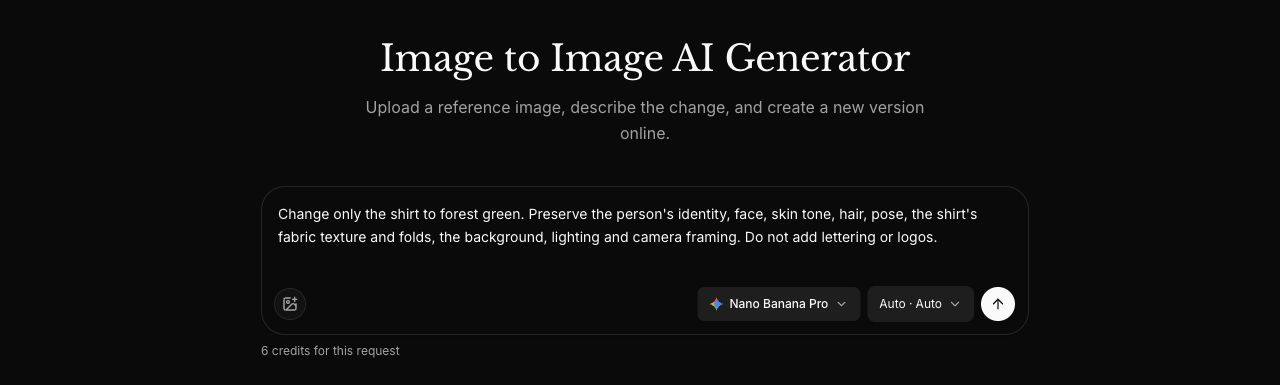
Only the Prompt field was prepared for this screenshot. The editor has no source photo attached.
Here’s the untested prompt shown above. Swap in your target color and, if needed, a more specific description of the shirt.
Change only the shirt to forest green. Preserve the person's identity, face, skin tone, hair, pose, the shirt's fabric texture and folds, the background, lighting and camera framing. Do not add lettering or logos.
If a print or embroidered detail matters, name it in the prompt and check it closely in the result. These instructions guide the model. It can still redraw facial features, lettering, seams, or how the shirt fits.
Check the quote before you generate
Review the selected model and its output options. Available settings and the number of references you can use vary by model. The screenshot shows the quote for the configuration pictured. Read the quote for your own request before selecting Generate. If you’re deciding whether to buy credits, check Image26 pricing.
Inspect the shirt, then the rest of the photo
Open the new image beside the original and zoom both to a comparable size. On the shirt, look at the highlights and shadows first. A convincing recolor should still let you see the fold under the arm or the shadow under the collar. Zoom in around the neckline and cuffs to check whether the new color spills onto skin, hair, or another layer. Look closely at buttons, seams, and any print you want to retain. Compare the same patch of cloth in both images. If the edit flattens the shadows across the chest, you may be seeing a change in the lighting as well as a change in color.
Then zoom out and compare the person and the setting. Look for a change in expression, skin tone, pose, or shirt fit. Check any straight lines in the background and compare the light on the face. A small difference may be fine for a personal concept image. Use the original when an edit changes a feature you need to represent accurately.
View the candidate at the size you’ll actually use. Forest green may look nearly black in a small crop and read greener in a larger view. Lighting and display settings affect the apparent shade. Treat the result as a styling concept. For an ecommerce listing, use verified photos of the actual color variant being sold.
Save a usable result or revise from the original
If the edit picked the wrong garment, go back to the original and clarify which shirt you meant. If the correct shirt was selected but its edges were hard to distinguish, try a clearer frame. Change one thing per attempt so you know what you’re asking the next edit to solve, and read the new quote before submitting. When a candidate meets your needs, save or download it if that option is available and retain your source file. You can find account images in My Creations.
This guide is affiliated with Image26 and its operator. GPT-6.1 Terra drafted it, and an independent AI copyeditor revised it. Editorial checks covered the saved current public interface and first-party source material. No new media was generated and no end-to-end tests were run. A separate independent AI reviewer checked the final text and interface screenshots for factual accuracy before publication.