How to Remove Unwanted Objects From a Photo With AI
Remove an unwanted object from a photo with a focused AI editing prompt, then compare the repaired background and important details before saving.
A drinks can, loose cable or stray sign can distract from an otherwise good photo. Image26 can use a text prompt to remove the object and redraw the surrounding area. Check the result carefully: details beyond the distraction may also change.
Choose a photo and a small distraction
Keep the original and work with a photo you own or have permission to edit. If the distraction sits near the edge, try a simple crop first.
A small object against paving or open ground is a practical starting point. If it overlaps a face, hand or important text, consider a retake, different crop or manual editing. AI can invent a plausible replacement, but it cannot recover the reality hidden behind an object.
Upload your photo and describe the repair
Open Image26’s image-to-image tool, select Add a reference image and upload your photo. Accepted formats are JPG, PNG and WebP, up to 10 MB per image. Avoid confidential source files: the public page says anyone with an image link may view it.
In Prompt, identify the object and its location, describe the surroundings to rebuild, and name the subject details you want preserved. Here is a proposed prompt:
Remove only the red drinks can beside the stone bench. Rebuild the paving and its natural shadows where the can was. Keep the bench, people, buildings, camera angle and lighting unchanged. Do not add new objects.
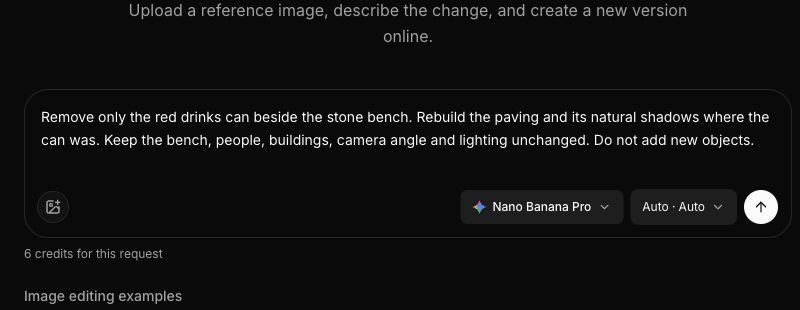
The selected model and displayed quote belong to this configuration with no reference photo uploaded. This is an input screenshot, not a repair result.
Generate and compare the whole image
Check the model, output settings and credit quote for your own request before selecting Generate. Model choice can affect reference limits, output options and the quote.
View the result beside the original at a comfortable enlarged size. Follow paving joints and fence lines through the repaired area. Look for repeated patterns, broken edges or shadows that change abruptly.
Check the main subject too, including faces, hands and readable signs. A request to keep something unchanged does not guarantee exact preservation.
Refine one detail and save a separate copy
If the repair needs another attempt, request one correction at a time—for example, ask for paving joints to continue in the same direction. Compare again with the original.
Download a version you want to keep from the result or My Creations. Save it separately from the original. For listings or reportage where physical truth matters, make sure the removal does not misrepresent the scene.
Disclosure: AI-drafted and AI-edited, fact-checked against the current interface and documentation, and produced for the Image26 operator. No new image was generated for this guide; the suggested prompt was not generation-tested.