How to Turn a Pet Photo Into a Coloring Page With AI
Use a pet photo and a suggested AI prompt to request a black-and-white coloring image, then check the outlines and prepare it for printing.
A photo of your own pet is a starting point for a personal coloring page. With Image26’s image-to-image tool, you can request a simpler black-and-white version, then save an image you like and prepare it for paper in your own image or print app.
This is a suggested use for Image26’s general AI image editor. The edit creates a new image, so markings, ears, paws, and pose may change. Compare any result with your original photo before using it.
1. Choose a clear photo
Pick one photo you have the right to use. Look for a clear view of your pet, a simple background, and a recognizable pose. If a collar, toy, or patch of fur matters to you, make sure it is visible.
Prepare a JPG, PNG, or WebP file no larger than 10 MB. Reference-image limits depend on the selected model and current uploader; start with one photo. The product page notes that anyone with an image link may be able to view it, so keep that in mind when choosing your photo.
2. Add the photo and describe the page
Open the tool and use Add a reference image to select your photo. Paste this proposed starting prompt into the Prompt box. You can adapt it to describe the details you want to keep.
Turn the pet in the reference photo into a simple black-and-white coloring page. Keep its pose and recognizable ears and markings. Use clear closed outlines, a plain white background, and large open areas for coloring. No gray shading, gradients, colored fills, text, or decorative border.
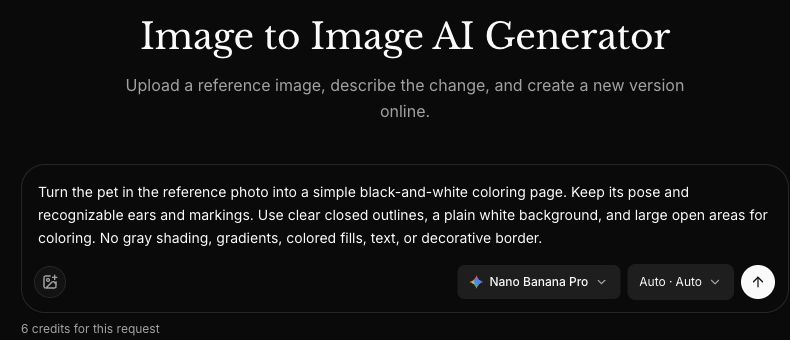
The prepared prompt in the Image26 input composer. No reference image has been uploaded, and this screen does not show a coloring result.
3. Check the settings and generate
Review the available model and settings, then read the credit quote. The screenshot shows Nano Banana Pro selected and a quote of 6 credits for those settings. Check the quote for your own request, then select the Generate arrow when you are ready.
4. Inspect, save, and print
Compare the finished image with your pet. Check the face, markings, ears, paws, and pose, then look for closed outlines, large open areas, and unwanted gray texture. If the page is too cluttered, revise the prompt—for example, ask for very large areas to color—and inspect the next result again.
Download the image you choose and open the saved file to check it. You can return to My Creations to find your images. For a paper copy, use your own print dialog or layout app. Check the preview, margins, and paper size before printing.
About this guide: This guide was drafted by GPT-6.1 Terra, independently edited by AI, and independently reviewed for factual accuracy by Codex before publication. It is published by the product operator. The interface was checked on November 14, 2026. The figure shows the real input screen; no subject photo was uploaded, no new image was generated, no purchase was made, and output quality was not tested.