How to Turn a Selfie Into a Professional Headshot With AI
Turn a clear selfie into a professional-looking headshot: prepare your photo, write a focused prompt, and check likeness before using it.
Start with a selfie you would be happy to use if the background, lighting or clothing were a little more polished. Image26’s image-to-image editor takes that photo and a written instruction to create a new version. Keep the original beside it when you review the result. Even a careful prompt can produce changes to your face.
Pick a selfie worth editing
Choose a recent picture with sharp eyes, even light and enough room around your head and shoulders. Face a window if you’re taking a new one, and check that the light reaches both sides of your face. Use the expression and hairstyle people usually see when they meet you. If you normally wear glasses, pick a shot where reflections leave your eyes visible.
If your best selfie is a group shot, try cropping around yourself. Check how much space the crop leaves around your head and shoulders.
Open the photo at full size before committing. A busy wall behind a clear face is a good reason to try a background edit. A face blurred by motion or partly out of frame is a good reason to retake the selfie. Keep the untouched original and upload a copy in JPG, PNG or WebP, up to 10 MB per image. Image26 says anyone with an image link may be able to view it, so keep that in mind when deciding what to upload or which links to share.
Add the photo and request a focused edit
-
Open the editor and select Add a reference image to upload your selfie. Image26 image-to-image editor
-
In Prompt, say what to change and which features to keep. If your clothes and lighting already work, ask for a background change alone.
-
Review the selected model and output settings. Available output choices and reference limits depend on the model. If you plan to crop later, look for a composition that gives you room around the face.
-
Check the credit quote for your request, then select Generate when you’re ready.
Here’s an untested example for a work profile where you want a simpler backdrop and more formal clothing.
Turn this selfie into a natural professional headshot. Keep the person’s recognizable facial features, age, hairstyle and expression. Use soft window light, a plain light-gray background and a simple navy jacket. Frame the head and shoulders. Keep natural skin texture and avoid text, logos and heavy beauty retouching.
Adapt the example to the photo in front of you. To keep a shirt you already like, replace the jacket instruction with “Keep my original shirt.” If the light already looks even, drop the lighting instruction. Before generating, read the prompt once and make sure it asks for the changes you actually need.
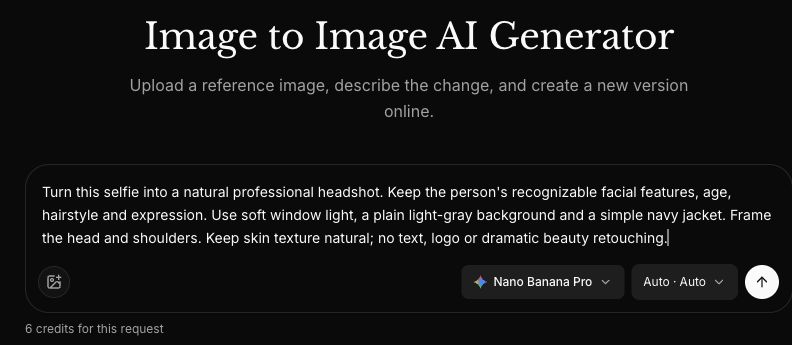
Screenshot of the Image26 editor with a suggested prompt entered. The reference slot is empty and no headshot has been generated.
Compare the result with the selfie
Put the two pictures side by side at a similar size. Look at the face first. Check the shape of the jaw and nose, the expression around the eyes, and features you recognize as yours, such as a crooked smile or a particular hairline. Then check details such as glasses, earrings and the edge of a collar. Look for halos where the new background meets your hair.
Preview the candidate in the intended profile crop if you can. For a small circular avatar, check that the face is easy to recognize and that the crop leaves enough space above your hair and below your chin. Use the version that looks most like you and fits the setting. If you need to find your edit again, open your account’s creation history. My Creations
Decide what to change on a second pass
-
The face looks different. Go back to the original selfie. Try asking for one change, such as replacing the wall behind you, so you have fewer details to compare.
-
The clothes look awkward. Inspect the neckline and shoulders. If the original outfit already suits the profile, keep it in the next request.
-
The framing feels cramped. Start with a wider selfie if the original cuts close to your head. You can make the final crop after you’ve chosen a portrait.
Review the displayed credit quote before sending a new request. If the original reads better in the profile preview, use it. For an application, badge or other formal submission, check the recipient’s photo rules before using an AI-edited portrait.
Disclosure: This Image26-operated guide was AI-drafted with GPT-6.1 Terra, independently AI-edited and fact-checked with GPT-6.2 Sol. Only the current public interface was inspected; no new image or video generation or end-to-end result tests were performed.