How to Turn a Pet Photo Into a Watercolor Portrait With AI
Turn a pet photo into a watercolor portrait with a focused AI prompt. Keep distinctive markings, check the painted details, and prepare an image to share.
A white paw or a patch over one eye can make a watercolor portrait feel like your pet. Start with one photo that shows those details clearly, then use it to guide your prompt and review the finished portrait. Image26’s image-to-image tool
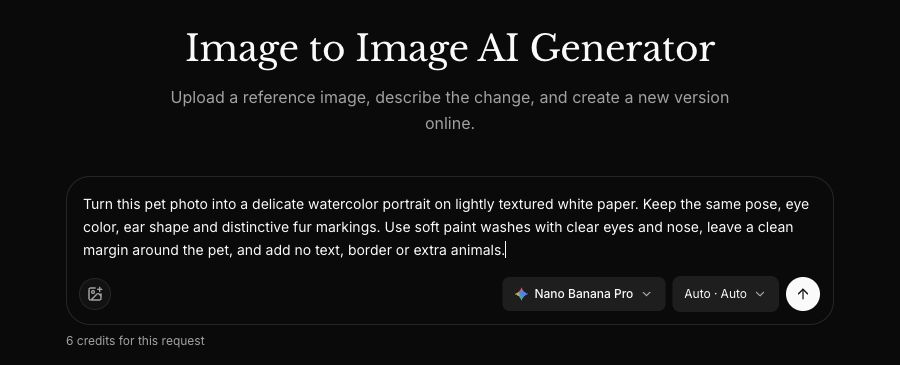
This cropped editor screenshot shows the suggested prompt before submission. It shows no account details, uploaded photo or generated portrait.
1. Choose a reference photo
Pick a well-lit photo you own or have permission to upload. Look for a sharp face, visible eyes and nose, and ears that fit fully in the frame. A simple background makes the outline easier to judge, and a little space around your pet gives you room to ask for a clean margin.
Image26 currently accepts JPG, PNG and WebP files up to 10 MB each. Use one photo for this portrait. The number of references you can add varies by model.
Remove private details before uploading. If an identifiable person appears in the photo, get the necessary consent for use with the service and its providers. Image26 sends inputs to selected AI and safety services. Some image or download links can be opened by anyone who has the link. Privacy policy · Acceptable use policy
2. Add the photo and write your prompt
Sign in to Image26 if needed. Add the photo as a reference and adapt this untested suggestion in the Prompt field.
Turn this pet photo into a delicate watercolor portrait on lightly textured white paper. Keep the same pose, eye color, ear shape and distinctive fur markings. Use soft paint washes with clear eyes and nose, leave a clean margin around the pet, and add no text, border or extra animals.
Name a detail you especially want to keep. For a patch around one eye, describe where it sits as you look at the photo. If you have a color mood in mind, add it in a few words.
3. Check the quote and generate
Review the model and output settings, then check the displayed credit quote before selecting Generate. The quote depends on the model and request settings, so check it before every request. Find the source and result in My Creations and keep your own copy of the original for comparison.
4. Compare the portrait with the photo
Look at the whole portrait first. Is your pet recognizable? Is there enough space around them? Then check the details up close:
-
Make sure one-sided markings are on the correct side.
-
Compare the eyes, nose and ears with the original.
-
Check the whiskers and outline for odd shapes or clipped edges.
-
Look for stray lettering, extra animals or distracting marks in the margin.
If a defining detail is off, try describing it more precisely in the prompt. A revision can still miss the detail, so weigh the new quote and inspect each result before deciding whether to try again. Save the portrait you choose and view it at the size you plan to share it.
We operate Image26 and used AI to help prepare this guide. We checked the interface and screenshot. We did not generate an image or test output quality for this guide.