How to Turn a Selfie Into an Illustrated Profile Picture
Turn a selfie into an illustrated avatar with Image26 Style Transfer: choose a photo, use a focused prompt, and check the profile crop.
Use Image26’s Style Transfer to redraw a selfie as an illustrated avatar. Start with a clear photo, describe the features you want to keep, and check the finished image before adding it to your profile.
Choose a selfie you want to use
Pick a JPG, PNG or WebP photo of yourself, or a photo you have permission to use. Choose one clear face with uncluttered framing. Make sure you like the hairstyle and head angle in the original photo, since it will guide the illustration.
Upload your photo and describe the illustration
-
Open Style Transfer and sign in.
-
Select Add a reference image and upload your selfie.
-
Choose Illustration from the Style menu. It is the current default.
Paste this into the Prompt textbox:
Turn this portrait into a clean editorial illustration for a profile picture. Keep the face recognizable, the same hairstyle, and the original head angle. Use simple shapes, subtle paper texture, and a plain warm background. Do not add text.
The prompt asks for a recognizable face, but style transfer redraws the source image. Facial features, hair and other details can change.
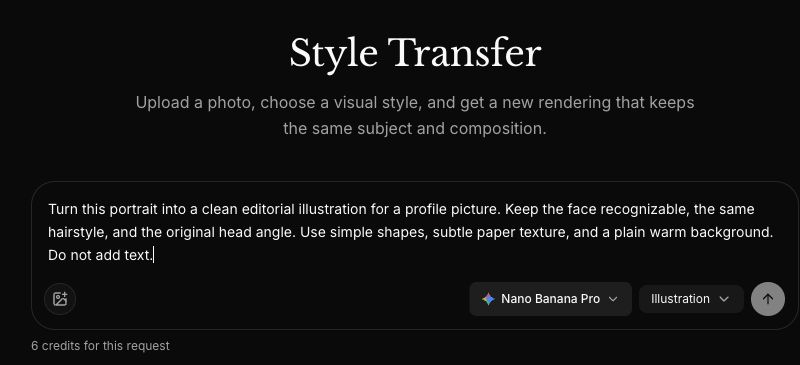
Style Transfer with the example prompt entered. Add your own selfie before running it; the model and credit quote may differ.
Check the request and generate
Review the selected image model and the request credits currently displayed. Model selection affects the request, so use the credit amount shown for your selection.
When you are ready, select Transform style.
Download and check your profile crop
Compare the finished illustration with your selfie. Look at the face, hairstyle and head angle, and decide whether it feels recognizable enough for your profile.
Download the image. You can also find it later in My Creations.
After downloading, use your social app’s profile-picture crop tool to preview the illustration in its small circular frame. Adjust the crop so your face stays visible. Avoid fine lettering, which can be difficult to read at avatar size.
This guide was substantively AI-generated for the site operator, then independently AI-edited and fact-checked. Current official pages and interfaces were checked on 9 November 2026. No new image generation or purchase was performed.