How to Change a Product Photo Background With AI
Use a product photo as a reference, write a focused background prompt, and download an image for your shop with Image26.
Use Image26’s image-to-image editor to give an existing product photo a different setting. Upload your photo, describe the background you want, then compare the output with your original before downloading it for your shop. Here’s the process, including a prompt you can copy and adapt.
Choose and upload your product photo
-
Choose a clear photo with the whole product visible. Look for sharp edges and readable label details so you have a useful reference when checking the output.
-
Use a JPG, PNG or WebP file. The page states a limit of up to 10MB per reference image.
-
Open the Image to Image AI Generator.
-
Select Add a reference image and upload your product photo.
Before writing the prompt, decide where you will use the image. A product listing might need a simple setting, while an image for a promotion might need empty space for a headline. Keep your original photo available for comparison.
Describe the new background
Paste this into the Prompt field:
Replace the background with a warm, sunlit kitchen counter and a softly blurred room behind it. Keep the product, label wording, cap, shape, and viewing angle as close to the reference as possible. Leave clear space on the right for a short headline.
Adapt the prompt to your photo:
-
Change the setting. Replace the kitchen counter with the background you want, such as a wooden shelf or plain tabletop.
-
Name the relevant product details. If your product has a lid or handle instead of a cap, change that part of the instruction.
-
Choose space for text. Change “right” to “left” if that fits your layout, or remove the final sentence if you do not need a headline.
Keep the instruction focused on the background and the product details that matter. For example, “keep the label wording” gives a more specific instruction than “keep everything the same.”
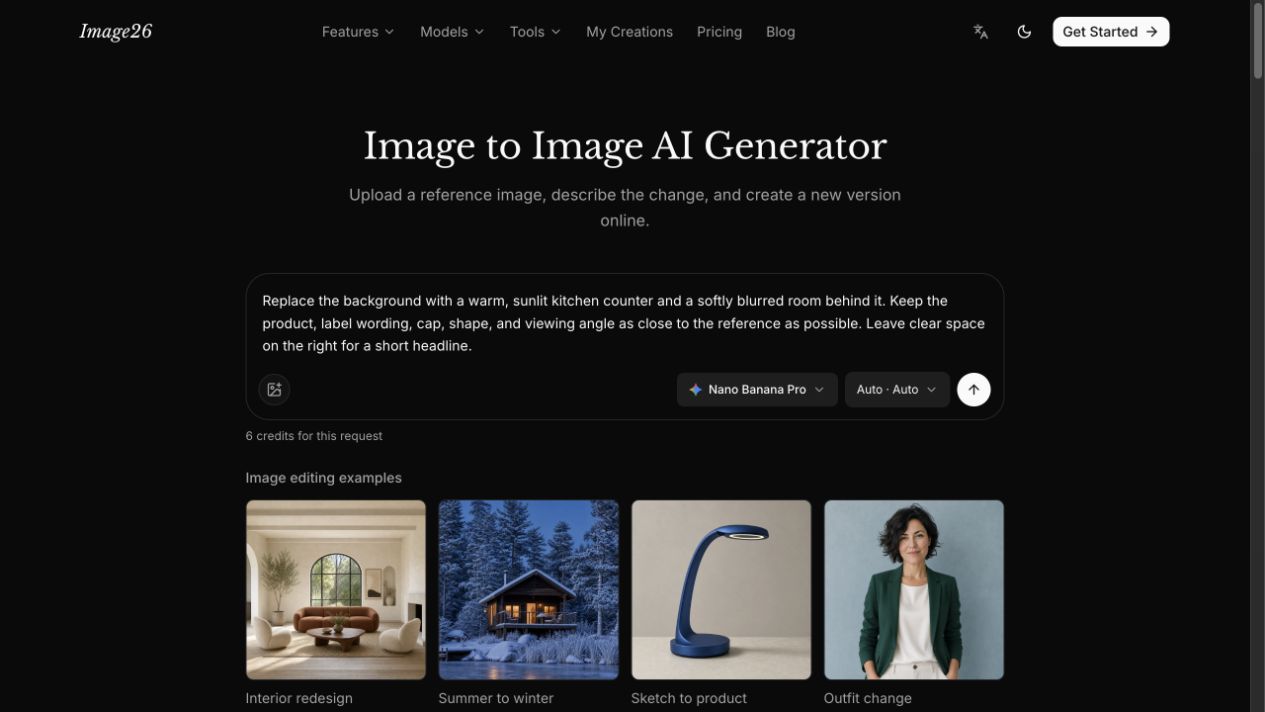
The Image26 editing workspace with an example prompt entered. Add your own product reference before generating.
Generate and check the product
-
Review the available model and output settings. Check the credit quote shown for your request; it depends on the selected model.
-
Sign in and use account credits as required, then select Generate when your photo, prompt and settings are ready.
-
When the output is available, compare it with your original. Read the label wording and check the cap, lid or handle, overall shape and viewing angle.
-
Check the background and composition. Does the setting match your request? Is the space intended for your headline clear enough to use?
AI editing can redraw the product as well as the background. If an important detail changes, revise the relevant instruction or use the original photo when an exact match is essential.
Find and download your image
Open My Creations in your account, choose the completed image and use its download control.
If you requested space for a headline, add the text after downloading. Before using the image in a listing or advertisement, check it at the size you intend to display, especially the product label and any text you add.
If you get stuck
If the photo will not upload, check its format and file size against the requirements above. If the background is too busy, try a simpler scene description and state which side should stay clear for text.
Disclosure: Substantively AI-generated for the Image26 site operator and independently edited and fact-checked against the supplied facts by Codex AI. Interface and official information checked 8 November 2026. Existing screenshot; no new generation was run for this guide.