How to Expand a Photo for a Vertical Story
Expand a square or landscape photo into a vertical 9:16 story image with Image26, then add a caption in your posting app.
A square or landscape photo can feel cramped in a vertical story. Image26’s Image Expander lets you request a vertical 9:16 scene with more background around the subject, including space for a caption you can add later in your posting app.
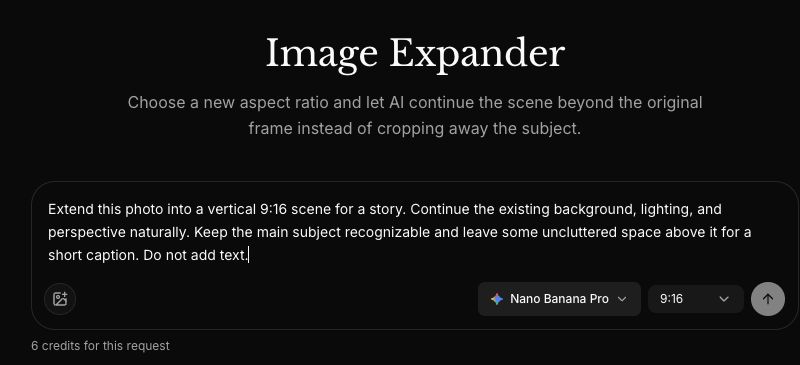
Actual Image Expander interface, November 10, 2026. The model and 6-credit quote shown are an example; check your current quote. No image was generated for this guide.
Prepare your photo
Choose a JPG, PNG, or WebP image you own or have permission to use. A photo with a clear main subject and some visible surroundings gives the expander context for continuing the scene. For example, a portrait with some sky or wall around the person gives you background details to describe in your prompt.
Decide where you want the caption before you start. The prompt below asks for space above the subject. Change that part if another area would suit your photo better.
Expand the image
-
Open the Image Expander and use Add a reference image to add your photo.
-
Under Choose an image model, select the model you want to use.
-
Choose 9:16 from the aspect ratio options.
-
In Prompt, enter the text below. Adjust the description of the caption space to suit your photo.
-
Check the current credit quote for your chosen model, then select Expand image.
You can copy this prompt:
Extend this photo into a vertical 9:16 scene for a story. Continue the existing background, lighting, and perspective naturally. Keep the main subject recognizable and leave some uncluttered space above it for a short caption. Do not add text.
The interface checked for this guide showed Nano Banana Pro at 6 credits. That is an example quote, not a fixed price or a required model; use the current quote for the model you choose.
Download and finish your story
When your result is available, review it before sharing. AI expansion can reinterpret or redraw parts of the original photo, including the subject. Check the subject’s appearance, whether the added background fits the scene, and whether there is enough clear space for your caption.
Download the result. You can also find download controls in My Creations. Open the image in your posting app, add your caption in the clear space, and check that it is easy to read before posting.
Disclosure: This site-operated guide was drafted and edited with AI assistance and received independent AI factual review. The interface was checked on November 10, 2026; no new generation, purchase, or result-quality test was performed.