How to Make a YouTube Thumbnail Background With AI
Make a wide YouTube thumbnail background with Image26, leave space for a headline, and finish the layout in your own app. Includes a prompt and real UI guide.
A simple thumbnail background supports your video’s subject and leaves room for a headline. Use Image26’s general text-to-image tool to create the background, then finish the thumbnail in your own layout app.
1. Choose one idea and a layout
Start with the video you actually plan to publish. Decide where the subject and headline should sit. A cable-organizing tutorial, for example, could show a cable on the right and an empty wall on the left.
Avoid misleading before-and-after scenes. Use logos or images of people only with permission.
2. Describe your background
Open Image26’s text-to-image tool and enter a description in Prompt. This proposed prompt is untested:
Wide background for a cable-organizing tutorial thumbnail. A single tidy wooden desk with a neatly coiled charging cable on the right, a plain deep blue wall on the left with generous empty space for a headline added later, bright warm light on the cable, simple high-contrast composition, no text, no logos, no border.
For another topic, change the subject while keeping one clear focal point and space for your headline.
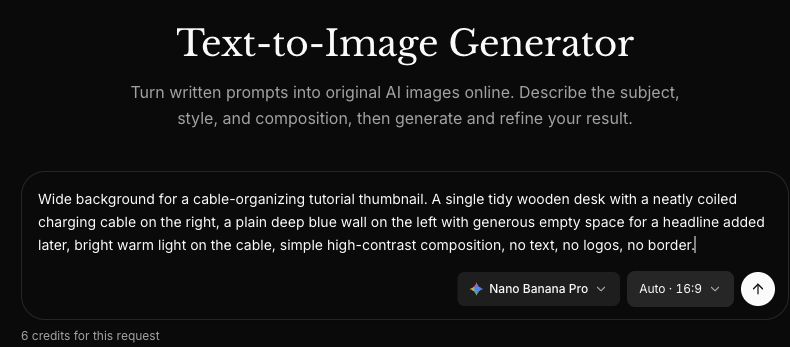
The real prepared input interface, not a generated background or thumbnail result.
3. Select a model and wide format
Choose a model, then open the format menu and select 16:9. The menu includes Auto, 1K, 2K and 4K resolution options; available settings vary by model.
The checked interface showed Nano Banana Pro, Auto · 16:9 and a 6-credit quote. Check your current quote, then select Generate when ready.
4. Inspect and refine the image
Check the actual image for usable headline space, a recognizable subject, unwanted text, visual artifacts and odd anatomy where relevant. View it at a small size too: fine details may disappear in a thumbnail.
If something needs work, change one instruction at a time—for example, move the subject farther right or simplify the wall. Check the quote before each new request; another generation uses credits.
5. Finish the thumbnail and check the file
Save or download your chosen image using the current result controls or My Creations. In your own layout app, add a short headline and, if useful, your own subject.
Check the actual exported file against YouTube’s current upload requirements. Choosing 16:9 alone does not establish that the file meets them.
About this guide: Drafted by GPT-6.1 Terra, independently AI-edited and fact-reviewed by Codex, and published by the product operator. The interface was checked on 15 November 2026; the figure shows real prepared inputs. No subject photo was uploaded, new image generated, purchase made or output quality tested.