How to Upscale a Square Photo With AI
Learn how to prepare a supported square photo, choose an enlargement target, and check the result with the Image26 AI upscaler.
Use Image26’s AI image upscaler to request a larger version of a square photo. The current generator accepts only static 1024 × 1024 JPG or PNG images, so check your file before starting.
-
Check your photo. Confirm that it meets the format and pixel requirements above. Keep the original for comparison, especially if it contains faces, lettering, or logos. Preparing a file at 1024 × 1024 pixels does not restore detail it has already lost.
-
Add the photo. Open the Image26 image upscaler, choose Add a reference image, and select your photo. The Upscale image button is disabled when no input has been added.
-
Choose an enlargement target. Review the selected image model, then open the Scale dropdown and choose 2× or 4×. These settings are requested targets; actual output dimensions and detail retention can vary by model.
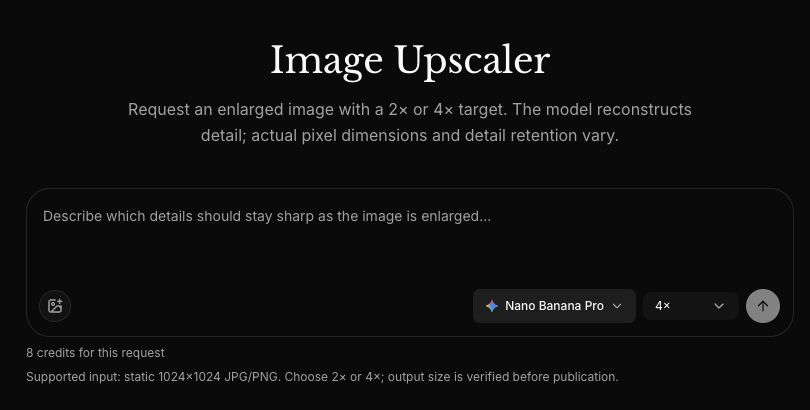
Image26 interface checked on 11 November 2026. The controls show an enlargement target and the current input requirements; this is not a generated result.
-
Describe the details to preserve. Give concise guidance in the prompt field. For a portrait, you could write: “Enlarge this photo while keeping the same composition and colors. Keep facial features and clothing consistent. Avoid changing any lettering.” Adjust the wording to match your photo.
-
Check the price and submit. Review the live credit quote for your request before selecting Upscale image. The quote can change, so check the amount shown after setting up your request.
-
Download and compare. When the result is available, download it or find it later in My Creations. Check the downloaded file’s pixel dimensions, then compare it with the original. Look closely at faces, text, logos, and any other details that matter for your intended use.
What if a detail has changed? AI reconstructs plausible detail and cannot recover everything missing from the original. Facial features, lettering, and logos may change. Keep the original if the enlarged version alters something important; a larger pixel count alone does not establish print quality.
Need a wider or taller frame? Use image expansion to add space around the original image.
Disclosure: AI drafted and edited this article, with independent AI factual review. It is published by the product operator. The interface was checked on 11 November 2026; no subject photo was uploaded, no result was generated, no credits were purchased, and output quality was not tested.